Similar Articles




 reverbtime-magazine
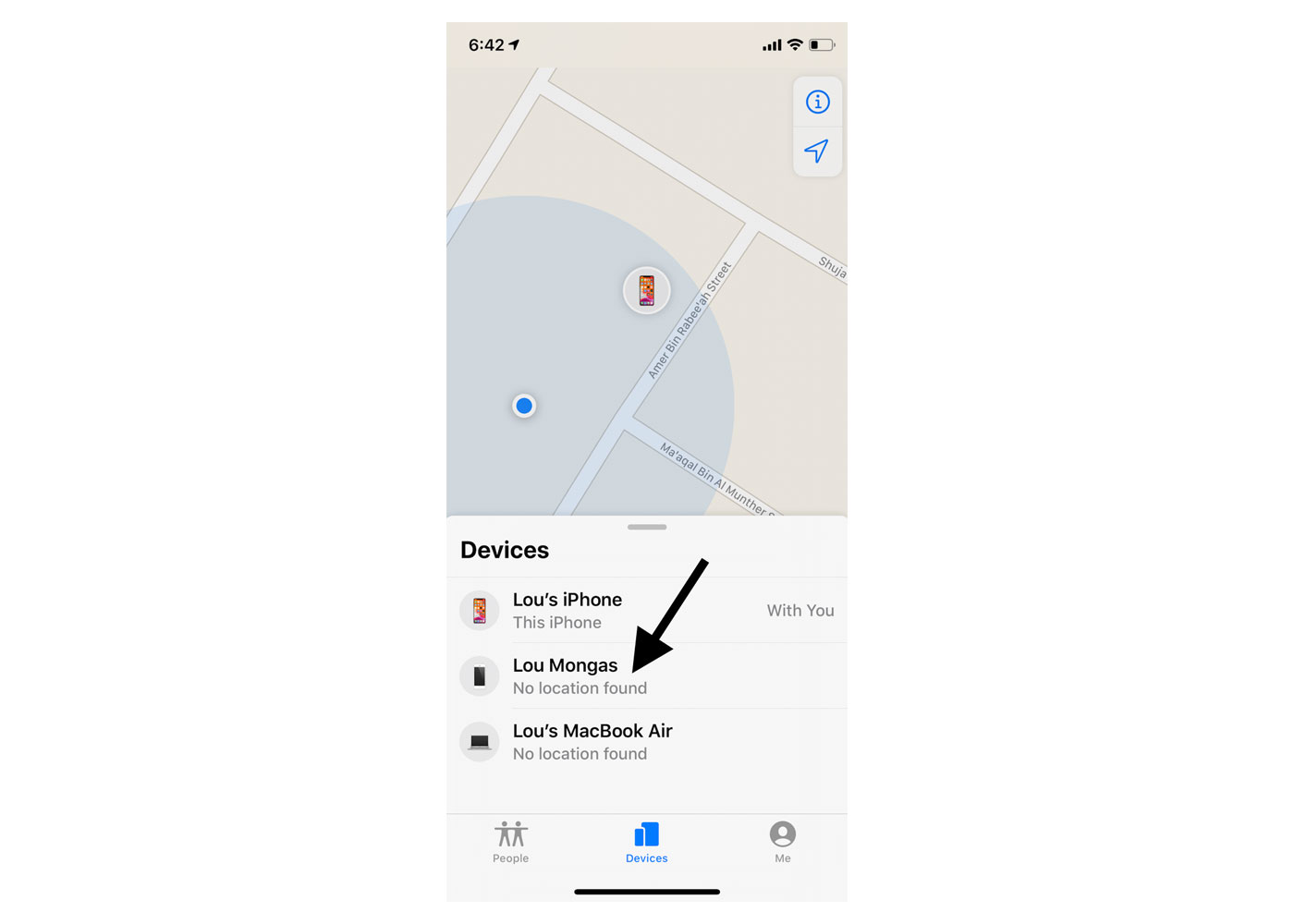
 There are a number of reasons why it sometimes says No Location Found when attempting to locate someone. To learn everything you need
to know about this message, continue reading below.
Location is a feature that aids in locating you. You can
catch up with those who are right around you as well. However, occasionally an
error message stating "no location found" will appear for iPhone
users. It might be brought on by a slow network. See if restarting your device
solves the problem.
Additionally, confirm that the most recent software is
installed on your devices. It might happen as a result of a serious software
flaw. You can also try restarting the app by swiping up from the bottom of the
screen, closing the message tab with a swipe up, opening it again, and entering
the location once more.
When someone's location is being tried to be located using
GPS, Find My Friends or iMessage will say that their location isn't available,
but it's actually trying to look for their location. This is the difference between
no location found and location not available.
No location found indicates that their location has not been
discovered despite repeated attempts by their GPS to do so. It expresses what
it means. No location available denotes that while their location isn't
currently available, it might do so quickly if they locate a signal.
No location found denotes that the person's location has
been untraceable for so long that it can only be categorized as not found.
No location found messages frequently appear on maps when a
person's phone is out of signal or has no wi-fi. When you see Location not
available, it means that although the device can't be located, the GPS is still
trying to locate it.
The absence of a location does not imply that your contacts
are no longer sharing their whereabouts with you. The GPS, the phone's location
service, and the internal functionality of the phone must all be functional for
iMessage and Find my to work properly. As a result, the app won't be able to
locate your friends or family members if any of these essential parts aren't
working.
Not when they stop sharing their location with you, the
"No location found" message appears when there is a problem with your
or your friend's GPS or when there is an error with the Find My Friends or
iMessage app.
It will say You Stopped Sharing Location in iMessage if
someone has stopped sharing their location with you.
You can quickly learn if someone has disabled their location
if you want to know in other ways.
The time and date on your friend's device must be
automatically set for the location sharing feature to work. If they don't have
the proper data and time configured in their phone settings, they won't be able
to tell you where they are. Users can choose to have the date and time changed
automatically, saving them from having to do it by hand.
To successfully share their location via iMessage or
"Find my," your contact must be connected to the internet. If you
receive the message "no location found," your contact isn't online.
iMessage operates on servers, and in order to transmit data, you must first
connect to the servers.
You must be connected to the internet in order to locate
someone. When someone shares their location with you, you must connect to the
iMessage server to view it. If you are not connected, the message "no
location found" may appear.
When loved ones share their location with you, they have the
option of ceasing to share your location at any time. If you check their
location and they have decided to stop sharing their location with you during
this time, you will see "no location found."
Because "Find my" became an app that people had to
download and log into, your friends or family members must be signed into the
app in order for you to send their location. They will not appear on the app
and you will not be able to see their location if they are not signed in to the
Find my app.
To exchange location information, your phone must send a
signal. If your loved ones are in an area where there is no signal, they will
be unable to communicate their location with you, even if location sharing is
enabled.
If someone shares their location with you and then turns off
their phone, you may see the message "no location found." To get a
live location of someone using iMessage or the Find my phone app, they must
have their phone turned on.
To successfully share a location, someone's phone must be
turned on. If their phone runs out of battery and shuts down, you will see the
"no location found" message. The person will be disconnected from the
iMessage servers, and the Find my device app will be unable to locate them.
Mobile devices can be set to Airplane mode, which prevents
them from making or receiving phone calls or text messages. Airplane mode, also
known as offline mode, is a state in which a device is not connected to the
internet. When someone switches their phone to airplane mode, it is equivalent
to turning it off, and their location is not detected.
According to the most recent version of iOS, the "Share
My Location" option on your iPhone is only available if you have logged
into your iPhone using your Apple ID.
You will not be able to locate someone if they are not
logged into iCloud. You can solve this problem if you can persuade them to sign
in to iCloud and then share their location with you.
"Find My Friends" aims to help you locate your
friends. You should be able to see their location if they are signed in to the
app and you are connected to the internet.
Find My Friends and iMessage can occasionally malfunction,
causing you to miss someone's location. Fortunately, you don't have to be
concerned about a glitch because it can be fixed and removed as quickly as it
appeared.
In this case, all you need to do is turn on your iPhone's
wi-fi. The Control Center is the simplest and most convenient way to activate
Wi-Fi. Once you've determined that you're connected to the internet, determine
whether the problem is with your modem.
To reset your internet connection, toggle airplane mode on
and off. You should then be able to see the person's location.
If you get the "no location found" error when
checking someone's location and it's because their device is turned off, the
only thing you can do is wait for them to turn it on. You should be able to see
their location once their phone is turned on and connected to the servers.
You may be unable to access someone's location because you
are in an area with no signal. Elevators, basements, and areas with few cell
towers are examples of places where there is no signal.
To remove the "no location found" message when
attempting to locate them, you must wait for them to arrive at a location with
a signal.
Find My Friends is a free iPhone app available from the App
Store. It updates your location on a map as well as the locations of friends
and family members using the many location-sharing features on your smartphone.
While it works best with a Wi-Fi connection and your
smartphone's GPS turned on, it can maintain a reasonably precise location with
only a mobile signal. To use the "Find my friends" feature, you must
be logged into the app. If your friend is not signed into the app, request that
they do so so that you can see their location.
To sign in:
1. Launch the Settings application.
2. Select 'Find My' by tapping your name.
3. Turn on 'Share My' Location.
4. Turn on 'Find My' by tapping it and then turning it off.
5. Tell Them If They've Signed Out Of iCloud to Sign In
You must instruct your friend to sign back into iCloud if
they had previously done so in order to fix "No Location Found." You
won't be able to find them if they don't sign into iCloud.
To sign in:
1. Open the Settings app on your iPhone.
2. Tap 'Sign in to your iPhone'
3. Sign in with your Apple ID and password.
4. You'll be presented with a blank screen that contains the
phrase 'Signing in to iCloud¦' Please be patient. The process can take several
minutes.
5. When asked, enter the four-digit passcode that came with
your iPhone.
6. Once you've signed in, your name will appear at the top
of the Settings application. It should be tapped.
7. After completing the process, you'll be taken to a screen
named 'Apple ID.' Select iCloud from the drop-down menu.
Your friends must have location services enabled for them to be able to send out their location. They won't be able to send their GPS to another contact if they don't enable location services.
To turn on-location services:
1. Launch the Settings app and select Location Services from
the menu to make your iPhone's location services available.
2. Scroll down to the 'Privacy' section of the Settings
menu.
3. Location Services can be found at the top of the
'Privacy' page, under the heading 'Location Services.'
4. Select the 'Location Services' option from the drop-down
menu to make the functionality available.
A device may perform better after being restarted. It takes
only a few seconds to restart an iPhone, and it is simple to do. All your
friend needs to do is briefly turn off and then turn back on their device.
The procedure for forcing an iPhone restart varies depending
on your friend's model. For older models, pressing the power and volume down
buttons should result in the appearance of the Apple logo. For newer iPhone
models, pressing the volume up and down buttons simultaneously, followed by the
power button, will restart the phone.
Updating your phone as soon as updates become available
ensures that your device maintains maximum functionality.
Bug fixes and/or significant security patches are frequently
included in updates, as are any new features. You can set your iPhone to
automatically update to make your life easier.
To do this:
1. Launch the Settings application.
2. Select 'General' from the drop-down menu.
3. Select 'Software Update' from the drop-down menu.
4. Select 'Automatic Updates' from the drop-down menu.
5. By swiping the button to the right, you can enable
automatic updates for your device.
There are a few methods for freezing your location on Find
My Friends that are detailed.
Your ability to share your location with loved ones is
impacted by signal. Move to a location with no signal if you no longer want to
share your location with friends. Moving as far away from a cell phone tower as
you can or going downstairs are two examples.
A quick and easy way to temporarily hide your location from
others is to put your phone in airplane mode. It is an inherent feature of all
mobile phones.
Keep in mind that switching to airplane mode will also
disable all notifications and cellular network usage, including phone calls and
text messages. When you switch on airplane mode, the network connection is cut
off, making it impossible for anyone to track your location.
By choosing Settings from the navigation bar on your home
screen, you can enter Airplane Mode. The airplane mode icon must now be
selected from the menu bar.
You can log out of the Find my friends app to stop sharing
your location if you use it to do so.
To sign out:
1. Launch the Settings application.
2. Scroll to the bottom and click Sign Out.
3. Input the Apple ID password for the user in question.
4. Choose whether or not you want backups of your iCloud
data to be kept.
5. Sign out of 'Find my.'
Turning off location services is the simplest way to stop
sharing your location with others. Once location services are disabled, neither
iMessage nor "Find my" will be able to share your location.
Toggle off location services at the top of the settings
screen under privacy to disable location services on your device.
There is only one surefire way to completely conceal your
location. Press the power button to turn off your iPhone, and then swipe right
to make sure it stops sharing your location. Your location will not be
disclosed to anyone after you turn off your phone.
Signing out of iCloud will definitely stop Find my Friend
and iMessage from sharing your location.
To sign out of iCloud:
1. Open the Settings app on your iPhone. The silver symbol
is pre-installed on all iPhones and cannot be uninstalled or changed.
2. Tap 'Sign in to your iPhone'
3. Sign in with your Apple ID and password.
4. You'll be presented with a blank screen that contains the
phrase 'Signing in to iCloud¦' Please be patient. The process may take several
minutes.
5. When asked, enter the four-digit passcode that came with
your iPhone.
6. Once you've signed in, your name will appear at the top
of the Settings application. It should be tapped.
7. After completing the process, you'll be taken to a screen
name 'Apple ID.' Select iCloud from the drop-down menu where you can sign out.









Do you want to have a website that attracts attention and wows visitors? Then, we are prepared to assist! Contact us by clicking the button below to share your thoughts with us.
reverbtime-magazine
Poland Web Designer is a leading technology solutions provider dedicated to creating innovative applications that address the needs of corporate businesses and individuals.